
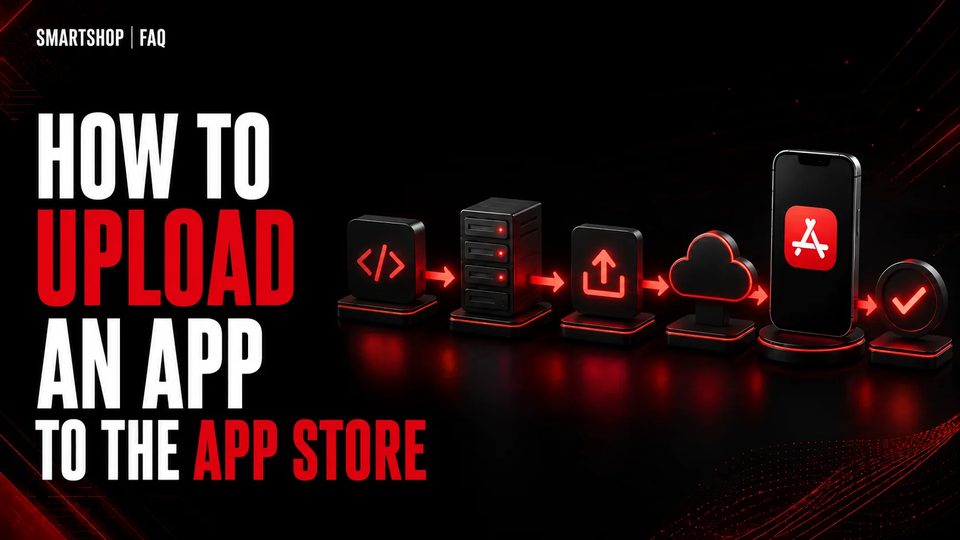
Uploading an app to the App Store often looks like a routine technical step: build the app, sign the archive, send it to App Store Connect, and wait for processing. But for an Apple Developer account, this stage is much more important than it may seem. Upload mistakes do not always lead to an immediate ban, but they can increase the risk of additional checks, rejections, technical issues, and loss of trust in the account.
We also published a short version of this topic on our channel: https://youtube.com/shorts/EZjEz57ZWVQ
Why the Upload Process Affects Account Safety
When you upload a build to App Store Connect, Apple receives much more than just the app file itself. The system analyzes the signature, certificates, Provisioning Profile, build metadata, information about the environment in which the build was created, and whether the declared functionality matches what is actually in the code.
If anything raises questions at this stage, a reviewer takes notice. A mismatch between declared capabilities and actual code, the presence of debug data, or suspicious SDKs can all trigger additional checks or rejection.
Moreover, the pattern of actions on an account matters. Chaotic uploads, constant certificate changes, frequent processing errors — they all build up a history that Apple uses when assessing an account's trustworthiness.
What a Clean iOS Build Means
A "clean build" is not just the absence of technical errors. It is a build that matches what is declared in the App Store and contains nothing extra. Before every release, make sure to verify the following:
- Test logins, tokens, and API keys have been removed — nothing that should not reach production
- Dev URLs and staging configurations are disabled — the app should only work with production endpoints
- Debug flags and verbose logs that could expose internal architecture have been removed
- Unused SDKs and outdated libraries have been removed, especially those unrelated to the app's purpose
- Capabilities that do not match real functionality are disabled
- Permission descriptions in Info.plist are up to date — they should honestly explain why the app needs access to the camera, location, or contacts
Apple pays particular attention to mismatches between declared functionality and what is actually in the code. If an app requests permissions that are not used, that is a red flag during review.
Why the Release Should Not Depend on a Personal Device
Many developers build and upload their app directly from their work MacBook. This is convenient but creates a number of systemic risks.
First, a local development environment is inherently messy. It may have many tools installed, configurations for different projects, old certificates and profiles. This increases the chance that something unnecessary ends up in the release build.
Second, if a developer works with multiple accounts or different teams, using a single device for all uploads creates a digital link between projects. Apple tracks these connections.
Third, a manual upload via Xcode depends on the state of a specific machine at a specific moment. If Xcode updated overnight or something changed in the system settings, the release may go out with unexpected parameters.
CI/CD as a More Stable Approach
CI/CD (Continuous Integration / Continuous Delivery) is an approach in which building, testing, and publishing an app happens in an isolated, reproducible environment. For every release, a clean environment with predefined parameters is created.
This provides several advantages from an account safety perspective:
- Environment isolation — each build happens in a clean container, without "leftovers" from previous projects
- Reproducibility — the same code always builds the same way, without depending on the state of someone's MacBook
- Auditability — every step is logged; you can say exactly what was done and when
- Access separation — no team member needs direct access to the developer account to publish
Popular CI/CD tools for iOS development: Xcode Cloud, GitHub Actions, GitLab CI, Bitrise, Codemagic, Jenkins. Each allows you to set up a pipeline that automatically builds, signs, and uploads the app on demand or by trigger (for example, when a tag is created in the repository).
Even if you have a small team and a single project, Xcode Cloud or GitHub Actions with fastlane is a minimal investment that immediately reduces manual errors during release and makes the process more predictable.
App Store Connect, Transporter, and Managed Access
App Store Connect is the main interface for managing apps. Transporter is Apple's official utility for uploading builds directly without using Xcode. Both tools require authorization via an Apple ID linked to the developer account.
The key principle is: minimize the number of people with direct access to the account. Apple App Store Connect supports roles — Account Holder, Admin, Developer, Marketing, and others. Smart role separation reduces the risk of accidental actions that might trigger the system.
For CI/CD, it is better to use App Store Connect API Keys instead of a specific user's login and password. API keys do not require two-factor authentication, are easy to invalidate, and do not create a dependency on a specific Apple ID.
Never share App Store Connect API Keys with third parties unnecessarily, do not store them in plain text in a repository, and set minimum necessary permissions for each key.
Mistakes That Most Often Create Problems
Here is a list of mistakes developers most commonly make when uploading apps:
- Uploading without a code audit — the app is submitted as-is, without verifying what it actually contains
- Using one environment for many unrelated projects — different apps are built on the same Mac with the same signing keys
- Sudden actions on a new account — immediately after receiving an account, multiple apps are uploaded in a row without an account "warm-up" period
- Chaotic certificate and profile changes — frequent rotation without a system creates confusion and can cause technical errors during upload
- Mismatch between declared and actual data — the app description, screenshots, and functionality do not match what actually works
- No TestFlight check before App Review — the app goes directly to review without prior testing on real devices
- Releasing from "whatever is open in Xcode" — accidentally uploading the wrong version or branch due to lack of a clear process
A Practical Approach to a Safer Release
Here are seven steps that will help make your release safer and more predictable:
- Check the code, SDKs, permissions, privacy labels, and production configs before building the release. Use a checklist — do not rely on memory.
- Create a release branch or tag in the repository. This fixes the exact state of the code going into the release and allows you to return to it if needed.
- Run the CI/CD build from a clean environment. No local artifacts, no cached state from last time — only a clean container with predefined dependencies.
- Sign the app with managed certificates and profiles. Use fastlane match or a similar tool for centralized storage and application of signatures.
- Upload the build to App Store Connect via an API key, not a personal Apple ID. Record the upload event and build version in your tracking system.
- Test via TestFlight before submitting for review. Make sure the app works correctly on real devices, not just in the simulator.
- Submit for App Review with accurate metadata: an up-to-date description, honest screenshots, working test credentials for the reviewer (if needed), and an honest answer to the encryption question.
A safe release is not a one-time action — it is a systematic process. The more reproducible and documented it is, the lower the risk to the account, and the easier it is to respond to Apple's questions if they arise.
Conclusion
Uploading an app to the App Store is not just a technical task. It is one of the stages where Apple's trust in your developer account is shaped. Mistakes here accumulate and can create serious problems even for accounts with a good history.
A clean build, an isolated build environment, CI/CD, managed access, and mandatory testing via TestFlight are not luxuries — they are the baseline standard for any serious iOS project. The sooner you build this process, the fewer unpleasant surprises you will encounter when working with the App Store.
If you have questions about working with an Apple Developer account or are looking for a clean account for new projects, reach out to SmartShop.
Ready-to-use accounts with a 7-day guarantee. 10+ GEOs available. Payment only after verification.
Order via Telegram