
Completing Enrollment does not mean your Apple Developer Program registration is done: the annual membership still needs to be paid. Below we walk through each step of the web payment process, explain how to fill in card details and billing address, and cover what to do if payment fails.
Watch the step-by-step walkthrough of the Apple Developer Program membership payment process on our YouTube channel.
When Does the Membership Payment Option Appear?
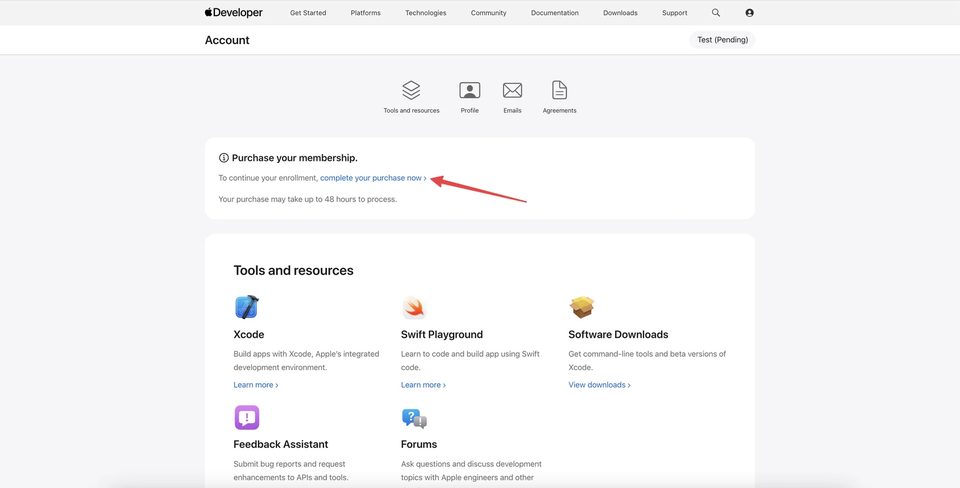
After Apple reviews and accepts your Enrollment information, a Purchase your membership section appears in your Developer Account. To check its status, open developer.apple.com/account. If the review is complete and payment is ready, a Complete your purchase now link will be available.
The timing varies: Apple may process the Enrollment in a few minutes or it may take longer. If the section is not yet visible, wait and check back later.
Note for Individual accounts: for web-based Enrollment, the annual membership fee must be paid with the account holder's own credit or debit card. A card belonging to a different person is generally not accepted for this step.
Step 1. Proceed to Membership Payment
Click the Complete your purchase now link. Apple will open the Enrollment payment page showing the membership details. In the United States, the base price is US$99 per year; applicable taxes may be added depending on your location and billing address.
On this page you will also see an optional checkbox to enable automatic renewal so the membership renews each year without a separate payment step. Review the option and make your choice before proceeding.
When ready, click Continue to payment.
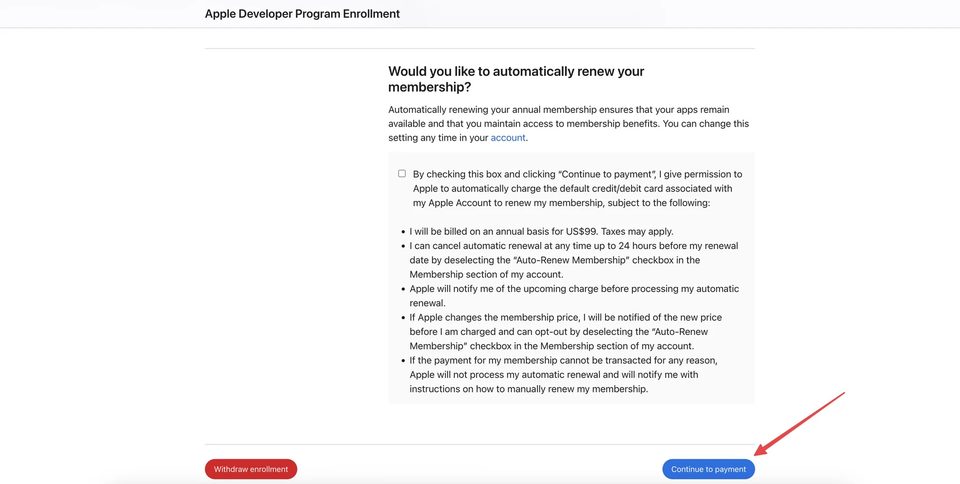
Note: automatic renewal is not available in every region. If the checkbox is absent, it is simply not supported for your account's region.
Step 2. Sign In to the Apple Store
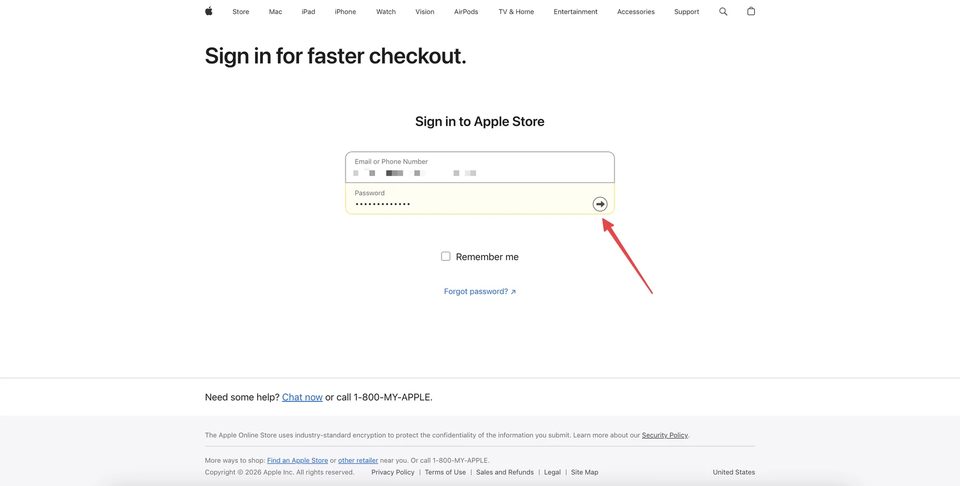
Apple will redirect you to the Apple Online Store checkout. You will be asked to sign in again. Use the same Apple Account that you used when completing Enrollment — do not switch to a different account at this step.
Signing in with a different Apple ID will cause a mismatch between the account that submitted Enrollment and the account attempting to pay, which can lead to errors or a failed purchase.
Step 3. Choose a Payment Method
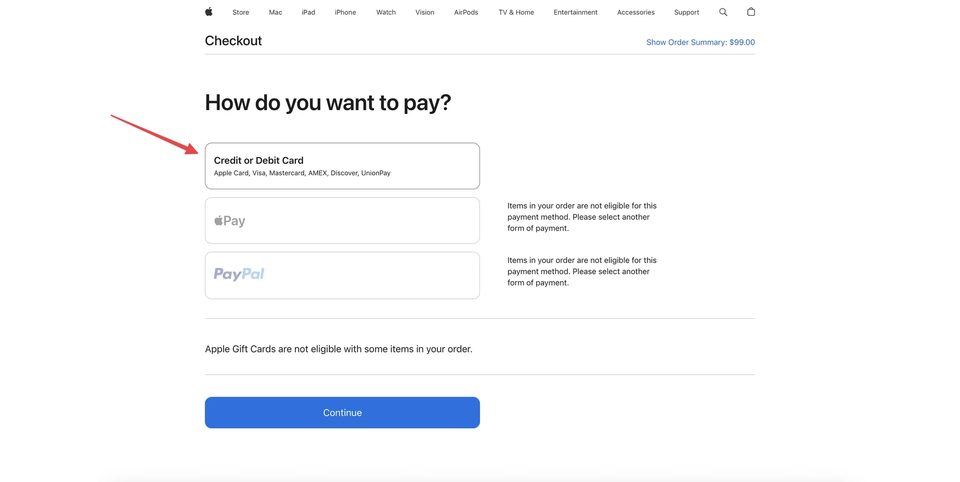
After signing in, the checkout page will display the available payment methods for your region. In the US example, Credit or Debit Card is available, while Apple Pay and PayPal are shown as unavailable for this type of purchase.
The set of available payment options varies by country and account region. Select Credit or Debit Card to proceed with card payment.
Step 4. Enter the Card and Billing Address
Fill in the payment form with the following details:
- Card Number — all digits, no spaces or dashes;
- Expiration Date — month and year as printed on the card;
- CVV / Security Code — the 3- or 4-digit code on the back (or front for Amex);
- Billing Address — the address registered with your card issuer;
- First and Last Name — as they appear on the card;
- ZIP Code — the postal code of the billing address;
- City and State;
- Email Address;
- Phone Number.
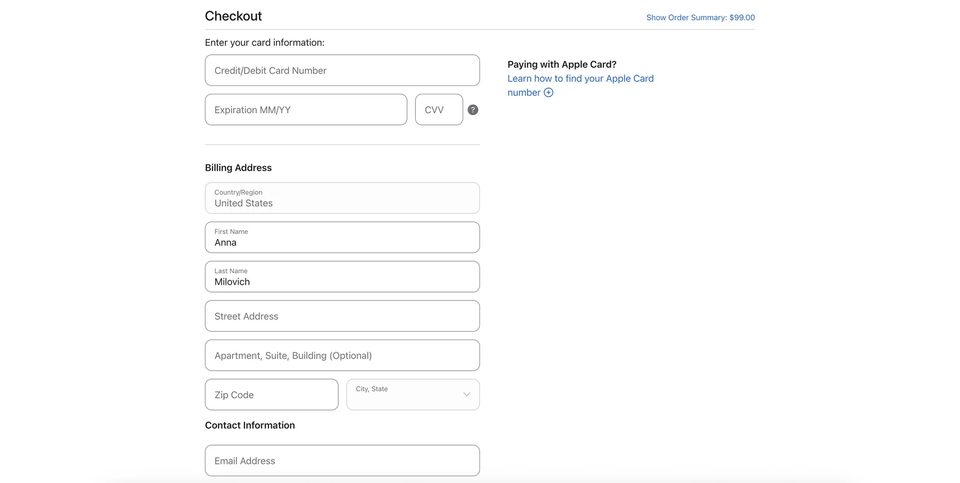
Important: the billing address must match the address on file with your card's issuing bank. Do not invent or approximate an address — a mismatch is one of the most common causes of payment failure.
How Much Money Should Be Available on the Card?
The US base price is $99 per year. However, depending on your billing address location, applicable sales tax may be added to the total. The exact tax amount is calculated at checkout based on the ZIP Code and state you enter.
To avoid a failed payment due to insufficient funds, keep approximately $120 available on the card as a safe buffer. This covers the base price plus potential tax in higher-tax jurisdictions. Once the actual total is displayed at checkout, you can confirm the exact amount before placing the order.
Step 5. Review the Details and Continue to the Final Order
Before proceeding, carefully review every field you have filled in:
- Card number, expiration date, CVV;
- Cardholder first and last name;
- Billing address, ZIP Code, city and state;
- Email address and phone number.
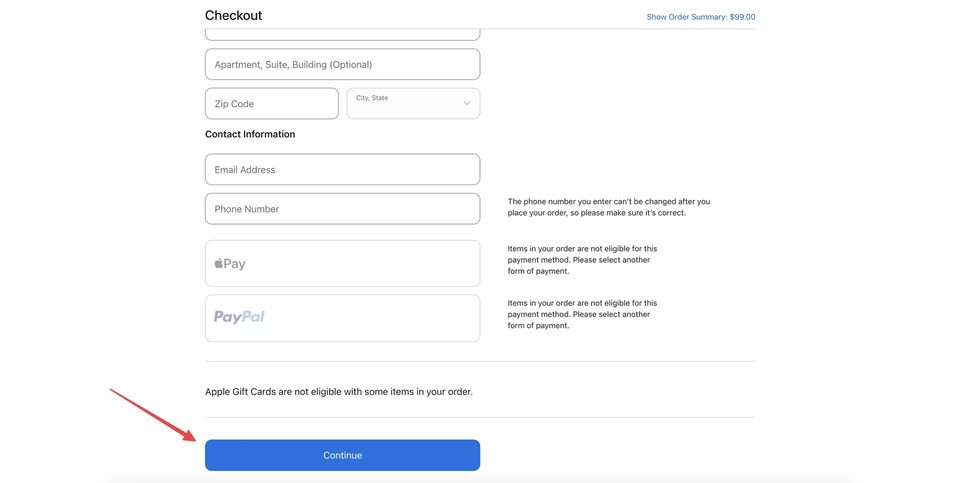
When everything looks correct, click Continue.
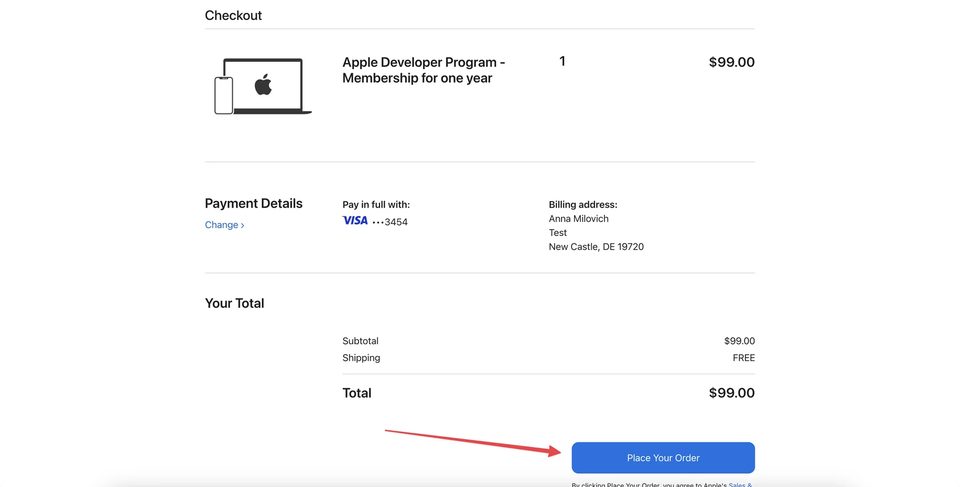
Apple will display the final order summary showing the membership for one year and the total price including any applicable taxes. Review the final amount, then click Place Your Order to complete the purchase.
Payment Went Through — Is Membership Already Active?
Not necessarily. A successful authorization or a charge appearing on your card statement does not guarantee that the Apple Developer Program membership is immediately active. Apple still needs to process and confirm the order on their end.
In some cases, Apple may cancel the order after an initial authorization — for example, during additional verification. The Developer Account status update can take up to 48 hours after the payment is placed. Do not assume the account is fully active until you see the membership status updated in your Developer Account.
Where to Check the Apple Developer Program Order Status
For US accounts, you can check the order status directly in your Apple Store account history. Go to apple.com/us/shop/goto/account, sign in with the same Apple Account, and open Order History to find the Developer Program membership order.
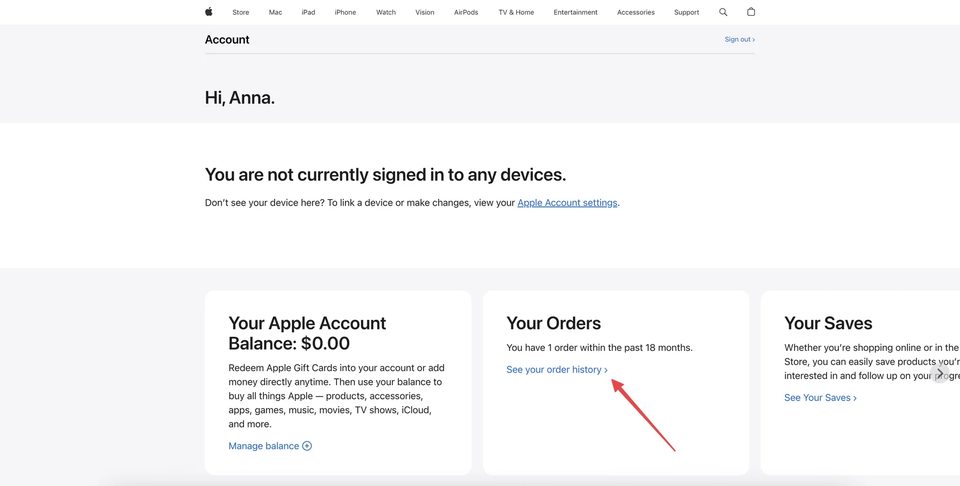
Note: the order may not appear in the Apple Store purchase history for all regions. The absence of the order in the list does not necessarily mean the purchase was cancelled — it may simply not be displayed there for your region's account type.
Also check your Apple Account email for any order confirmation or notification from Apple. And verify the Developer Account status at developer.apple.com/account.
What to Do If You Get Payment Authorization Failed
If you see a Payment Authorization Failed error message after placing your order, the transaction was not approved by the card issuer or Apple's payment processor. Before retrying, work through the following checks:
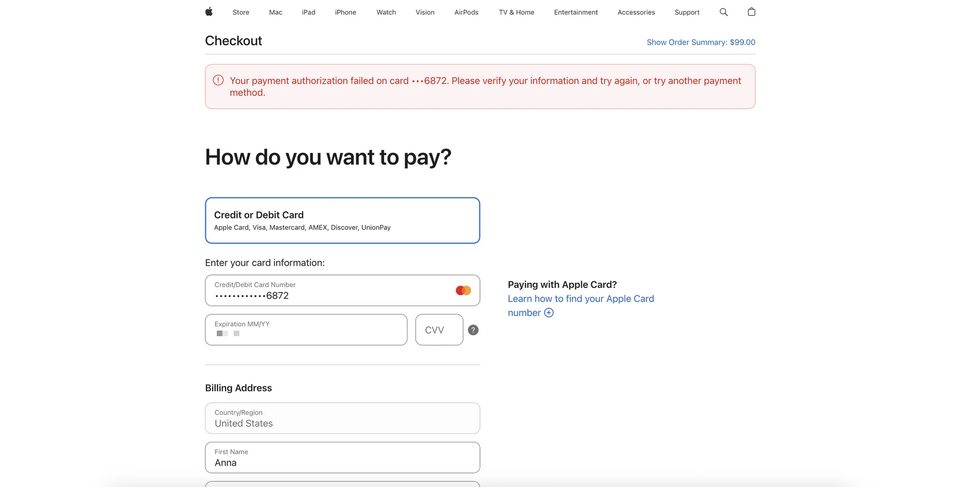
1. Card Balance
Confirm that your card has enough available funds to cover the membership fee plus any applicable tax. As noted above, keeping ~$120 available is a safe reference for US accounts. If the balance is insufficient, top up the card before retrying.
2. Card Details
Double-check that the card number, expiration date, and CVV were entered correctly. A single incorrect digit will cause the payment to fail. Re-enter the details carefully, paying attention to the exact card number length and the CVV location on your card.
3. Billing Address
Verify that the billing address matches exactly what your bank has on file for the card. This includes the street address, city, state, and ZIP Code. Even a minor difference — a missing apartment number, an abbreviated street name, or a wrong ZIP — can trigger a failed authorization.
4. Bank
Contact your bank or card issuer to check whether the transaction is being blocked on their end. Some banks flag international or online purchases by default, especially for amounts that match subscription charges. Ask the bank to confirm whether a charge attempt was made and whether it was declined by them.
Do Not Retry the Same Payment Dozens of Times
If your bank confirms that the card is working correctly and no block is in place, repeating the same failed payment attempt many times will not help — and may trigger additional security flags on both the bank and Apple side.
Instead, note down the following information and contact Apple Developer Support:
- The exact error message text (e.g., "Payment Authorization Failed");
- The date and approximate time of the failed attempt;
- The last four digits of the card used;
- Your Apple Account email.
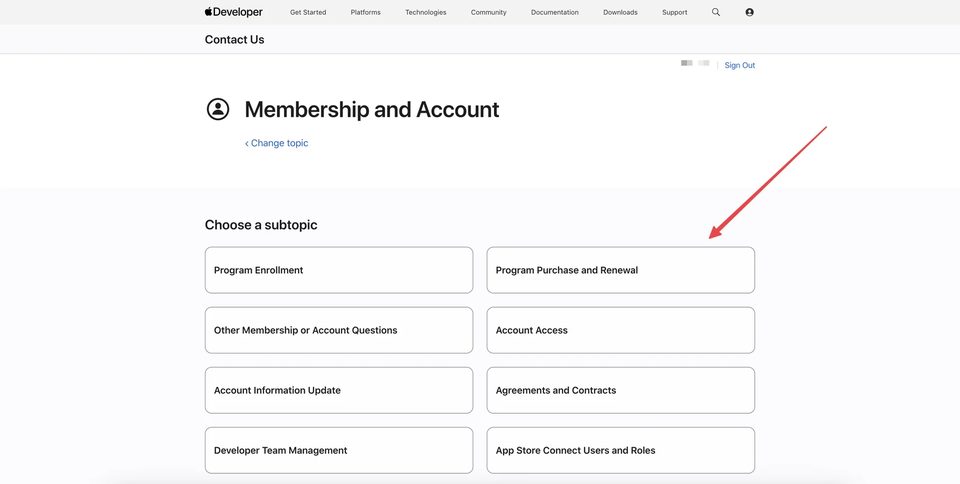
To reach Apple Developer Support, go to developer.apple.com/contact and select Membership and Account → Program Purchase and Renewal.
If payment keeps failing despite all checks and Apple Support is unable to resolve it, SmartShop provides ready-to-use Apple Developer accounts as an alternative — both Individual and Company, Web Made and Device Made. Contact us on Telegram to find out more.
What to Do If the Order Takes Too Long to Process
Allow up to 48 hours after placing the order before concluding that something is wrong. During this window, Apple is processing the payment and updating the Developer Account status.
While waiting, check the following:
- The membership status in your Developer Account at developer.apple.com/account;
- Your Apple Account email for any order confirmation, issue notification, or request from Apple;
- Your Apple Store order history (if available for your region);
- Your card or bank statement for any charge or refund related to the $99 payment.
If the membership status has not changed and no communication has arrived after approximately two days, contact Apple via developer.apple.com/contact — Membership and Account — and describe the situation with the order details. If Apple does not resolve the issue in a reasonable timeframe, SmartShop can supply a ready account instead.
When It May Make Sense to Pay Through the Apple Developer App
In most cases, paying through the web at developer.apple.com is the standard and expected path after web-based Enrollment. However, if web payment is repeatedly rejected and Apple Support is unable to identify the cause, it may be worth considering a fresh start through the Apple Developer app.
To do so, you would need to use the Withdraw enrollment option to cancel the current web Enrollment, then begin a new Enrollment through the Apple Developer iOS app.
Important: do not withdraw your Enrollment after just one failed payment attempt. First confirm the order status, contact support if needed, and only consider this option if the situation remains unresolved after making reasonable efforts. Withdrawing Enrollment restarts the entire process from the beginning.
How Payment Through the App Differs from Web Payment
When Enrollment is initiated and completed through the Apple Developer app, the membership fee is charged as an annual auto-renewing subscription using the Apple Account's default payment method (which can be Apple Pay, a card saved in Apple ID, or another method supported in your region).
When Enrollment is done through the web, the payment goes through the Apple Online Store checkout, where you select a payment method and enter card and billing details in the form. The available payment methods depend on the region and what Apple makes available for that specific purchase type.
If both paths have been exhausted without success, SmartShop offers a direct alternative: we supply fully set up Apple Developer accounts — Individual and Company — without the need to go through Enrollment and payment yourself.
Conclusion
After successfully completing Enrollment, the next step to activate your Apple Developer account is purchasing the annual membership. For web payment, follow this sequence:
- Open developer.apple.com/account and click Complete your purchase now.
- Sign in to the Apple Store with the same Apple Account used for Enrollment.
- Select Credit or Debit Card as the payment method.
- Enter your card details and the exact billing address registered with your bank.
- Review the order summary and click Place Your Order.
The US base price is $99/year; applicable taxes may be added. Keep extra balance on the card to cover potential taxes — approximately $120 is a safe reference.
After placing the order, check both the Apple Store order status and your Developer Account. Processing can take up to 48 hours. If you receive a Payment Authorization Failed error: verify your card balance, re-enter card details carefully, confirm the billing address matches your bank records, and contact your bank if the card is being blocked. Avoid retrying dozens of times — instead, contact Apple Developer Support at developer.apple.com/contact.
Individual $350 · Company $650 · Renewal $200. We supply Web Made and Device Made accounts. Get in touch — we'll find the right option for you.
Message us on Telegram