
Apple Developer accounts are often created as Individual, but at some point it becomes necessary to develop and publish apps under a registered company. In that case, you don't have to start from scratch with a new account — Apple lets you submit a request to change your Membership type and switch from Individual to Organization.
This transition is relevant when development, app publishing, and ongoing work in Apple Developer Program need to happen under a legal entity. Apple will verify the organization's details, so it's important to prepare the company name, website, D-U-N-S Number, and any documents that may be required for verification.
Below is the full step-by-step process — from opening the form to submitting the request and waiting for review.
If you need an Organization account without going through the upgrade process yourself, SmartShop offers ready-made Apple Developer Company accounts for $650. These are accounts registered to a legal entity, verified and ready to use.
Individual vs Organization: What's the Difference
Individual Membership is issued to a natural person — the developer themselves.
Organization Membership is used when the account needs to be tied to a registered company. During the transition, Apple verifies that the organization actually exists and that the information you provide matches the official company data.
That's why the critical part of this process isn't filling out the form — it's the accuracy of the data. Apple cross-references the company name, D-U-N-S Number, and other details, so any discrepancies may slow down the review or trigger additional requests from support.
Where to Find the Form to Switch to Organization
Open your Apple Developer account page: https://developer.apple.com/account
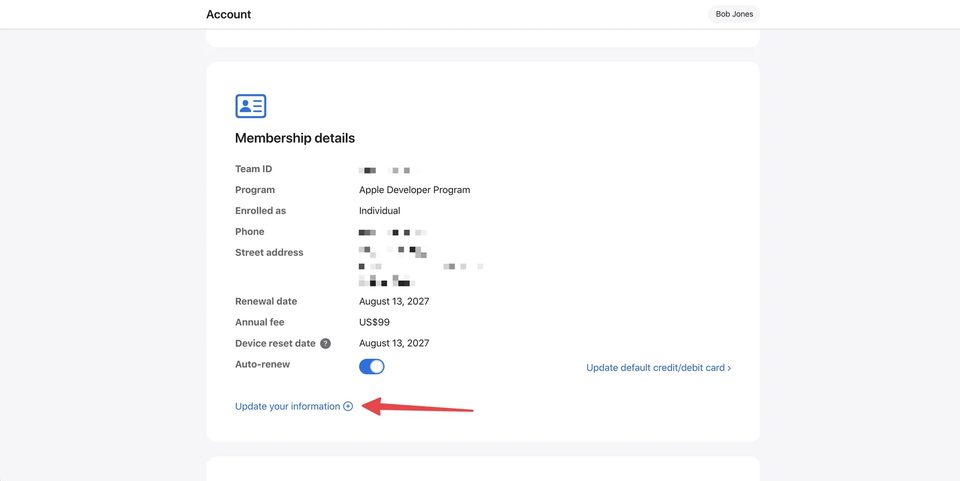
Scroll down to the Membership details section. This shows your current program enrollment, including the account type. If the account is currently Individual, it will appear in the Enrolled as row.
Below is an Update your information link — clicking it opens the Membership update menu.
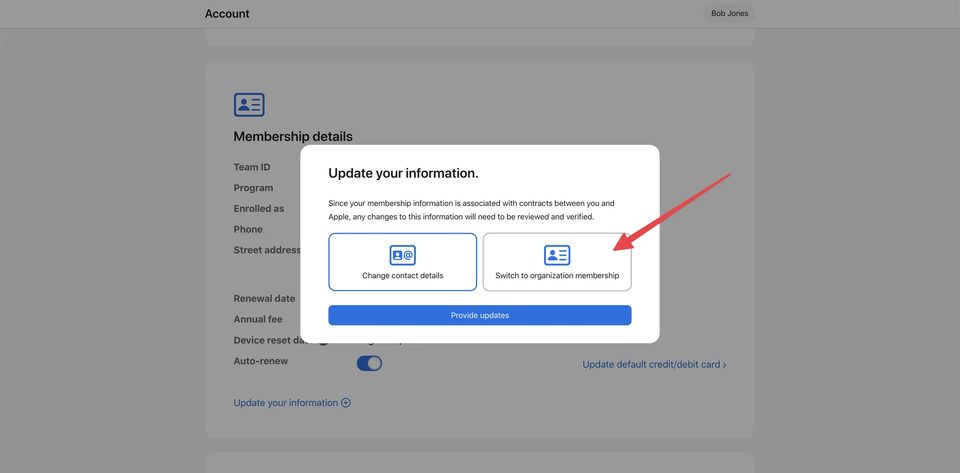
Apple will then show a few update options. Select Switch to organization membership, then proceed with Provide updates.
This opens the Individual to Organization Membership Update form. The top section is pre-filled with the current account owner's details; below, you'll fill in the company information.
What Company Details You'll Need
The first field is Region — select the country or region where the organization is registered.
Apple then asks for three key details:
- Organization Name — the official legal name of the company;
- Organization Website — the organization's website;
- Organization D-U-N-S Number — the company's D-U-N-S Number.

Pay special attention to the organization name. Use it exactly as it appears in official registration records and the Dun & Bradstreet database. The website must also belong to this organization.
What Is a D-U-N-S Number
A D-U-N-S Number is a unique nine-digit identifier for an organization in the Dun & Bradstreet database. Apple uses it as one of the primary ways to verify a legal entity.
Apple can cross-reference the company you provide against the official database using this number. So the D-U-N-S Number must belong to the exact same organization you're transferring the account to.
If you don't know your company's D-U-N-S Number, there's a lookup tool link below the field in the form. It's best to verify the data in the database before submitting.
How to Answer the Form Questions
Below the main information, Apple asks a few clarifying questions. The answers depend on your specific company — don't just copy an example; choose what actually applies to your situation.
For "Are you the founder or co-founder of this organization?" — select Yes if the account owner is indeed the founder or co-founder.
For "Does this organization use a DBA, fictitious name, or trade name?" — select No if the organization doesn't use a separate trade name.
For whether the organization holds an active Apple Developer Program membership — if the company doesn't have a separate Membership and you're transferring the current Individual account to it, select No, this organization does not hold a membership.
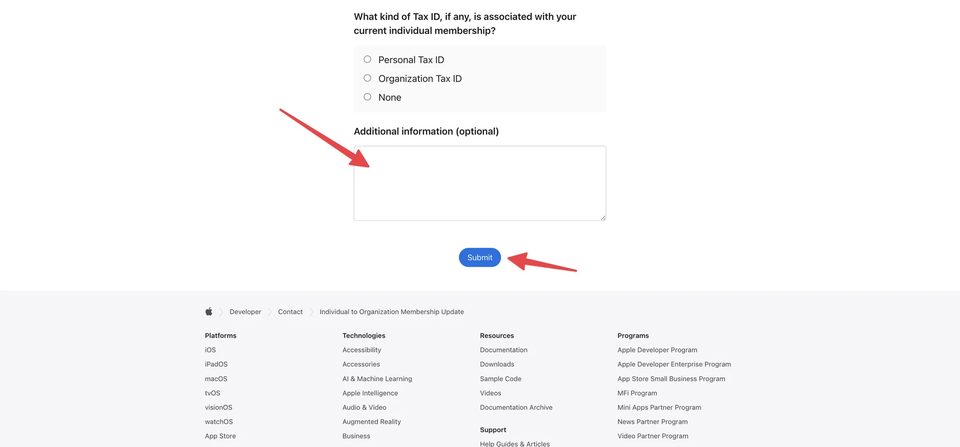
For Tax ID associated with the current Individual Membership — in our example, select None.
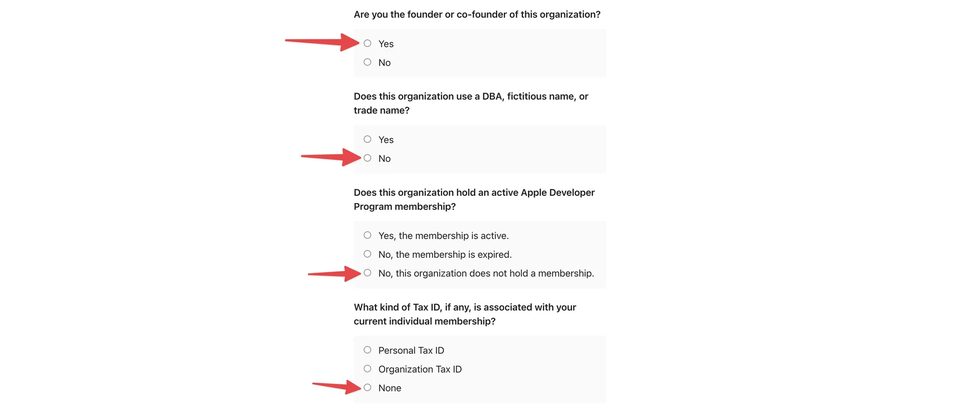
The main rule: answers must reflect the actual situation. If the organization uses a trade name, already holds a separate Apple Developer Membership, or a Tax ID is linked to the current account, choose the appropriate option.
What to Write in Additional Information
The Additional information field at the bottom of the form is optional. If there's nothing extra to add, you can leave it empty.
Use this field if you need to provide Apple with important context alongside the transition — for example, to update contact details, an address, or clarify something about the organization's data.
Don't overload this field with a long message unless necessary. If there are no additional circumstances, keep the form clear and focus on the accuracy of the main details.
Before submitting, review:
- the country of registration;
- official company name;
- website;
- D-U-N-S Number;
- answers to the organization questions;
- Tax ID information.
Click Submit.
What Happens After Submitting
After clicking Submit, the account doesn't switch to Organization immediately. The request goes through Apple's review process first.
You'll then need to wait for a response. Communication typically arrives by email to the Apple Developer account owner.
During the review, Apple may request additional documents confirming the company's existence or the authority of the person acting on its behalf. Have the organization's registration documents ready and make sure they don't conflict with the form data or D-U-N-S.
If everything checks out, Apple updates the Membership type from Individual to Organization.
What to Prepare in Advance
To avoid returning to the form multiple times, gather the company's key details in one place before you begin.
You'll need:
- a registered company;
- official legal name;
- organization website;
- D-U-N-S Number;
- accurate information about the company's status and current Membership;
- organization documents for potential additional review by Apple.
It's especially important to verify that the company name matches what's in Dun & Bradstreet. If the form name differs from the database record, Apple may require additional confirmation.
Common Mistakes When Switching from Individual to Company
The most common mistake is rushing through the form — submitting without checking how the organization is actually listed in official sources.
The second issue is an incorrect D-U-N-S Number — it must belong to the same organization whose name and website appear in the form.
The third point: the additional questions aren't universal. For example, selecting Yes to the founder question only makes sense if that's actually the case. The same applies to a separate Membership, trade name, and Tax ID.
The more accurately the form reflects the real structure and data of your organization, the less likely Apple will need to come back with additional questions.
How Long Does the Switch Take
Apple doesn't specify a fixed review timeline. After submission, the request is reviewed individually, and timing depends on whether the provided information is sufficient and whether additional verification is needed.
Treat this as a company verification process, not an instant account setting. If Apple requests documents, respond with well-prepared and consistent data.
Conclusion
Switching an Apple Developer account from Individual to Organization starts in the Membership details section via Update your information → Switch to organization membership.
Apple then asks for the company's country of registration, official name, website, and D-U-N-S Number, plus several questions about the organization's structure and current Membership. After submission, the request goes through review, and Apple may request additional documents.
The key is not speed — it's accuracy. Company name, D-U-N-S, and document information must all match. Prepare everything in advance and the process becomes straightforward: fill out the form, submit it, and wait for Apple's review.
Individual $350 · Company $650 · Renewal $200. Web Made and Device Made accounts across 10+ GEOs. Contact us to find the right option.
Message on Telegram