

The change affects more than the appearance of an app’s product page. It changes the creative workflow itself: some assets can now be submitted for review separately from a new app version, prepared in advance for seasonal campaigns, used with Custom Product Pages, and tested through Product Page Optimization.
Here is what has already appeared in App Store Connect and what teams should check now.
What Changed in App Store Connect
After the update, the changes are visible in several places at once.
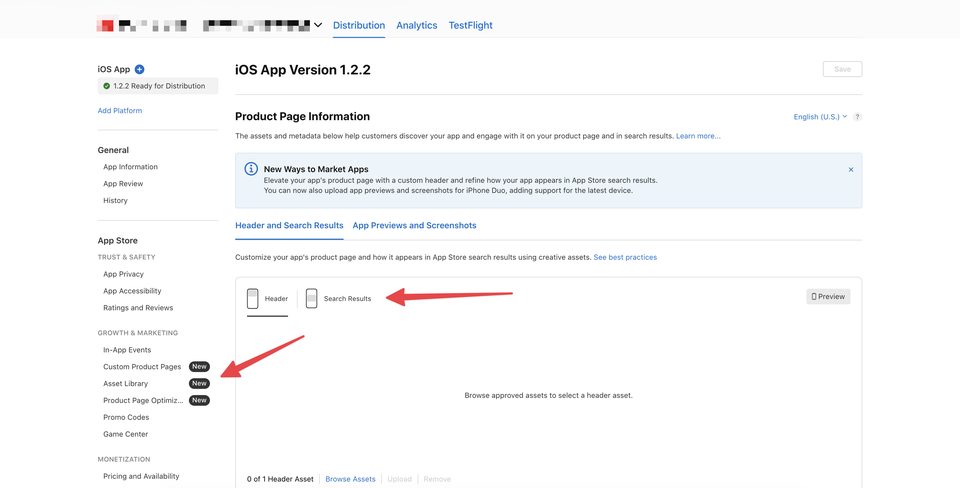
A New Ways to Market Apps section has appeared on the iOS app version page, while Product Page Information now has two separate tabs:
- Header and Search Results;
- App Previews and Screenshots.
Inside Header and Search Results, Header and Search Results are configured separately. Each placement includes Browse Assets, Upload, Remove, and Preview options.
In the App Store Connect sidebar, Apple has also marked four sections as new:
- App Information;
- Custom Product Pages;
- Asset Library;
- Product Page Optimization.
Existing screenshots do not need to be uploaded again. They already appear in Asset Library together with their review status. In the interface, they may be shown, for example, as Approved or Archived.
Creative assets remain optional and do not replace standard screenshots or app previews.
As of October 2026, the new assets are shown on devices running iOS 27 and iPadOS 27 or later.
App Store Connect also now includes Preview, which lets teams see in advance how the Header, screenshots, and metadata will look together. Preview supports different devices, orientations, and Dark Mode.
Product Page Header and Search Results Asset
Apple separates the two new placements.
The Product Page Header appears at the top of the app’s product page. Users see it after opening the product page.
The Search Results asset appears earlier — directly in App Store search results, before the user opens the app page.
That is why the Search Results asset should be treated as the higher-priority creative: it is the first one the user encounters.
The technical requirements differ between the two placements.
| Parameter | Product Page Header | Search Results |
|---|---|---|
| Image | 21:9 — 3840×1646 px or 16:9 PNG — 5244×2950 px | 3:2 — from 1920×1280 to 3840×2560 px or 16:9 PNG — 5244×2950 px |
| Video | 21:9, 5–30 seconds, 30 or 60 fps | 3:2, 5–30 seconds, 30 or 60 fps |
| Audio | Off by default, users can turn it on | Off and cannot be enabled |
A single universal asset can be used for both placements. App Store Connect includes a Use header asset in search results option for this.
The shared format that works for both placements is 16:9, 5244×2950 px.
Before using an asset, check its Works With field: Approved does not mean the material is automatically valid for every placement.
Images must not contain transparency, and videos loop.
Creative assets can be configured separately for different localizations. For key markets, it therefore makes sense to prepare localized versions rather than using one English Header for every storefront.
Asset Library: Creative Review Is No Longer Tied to a Release
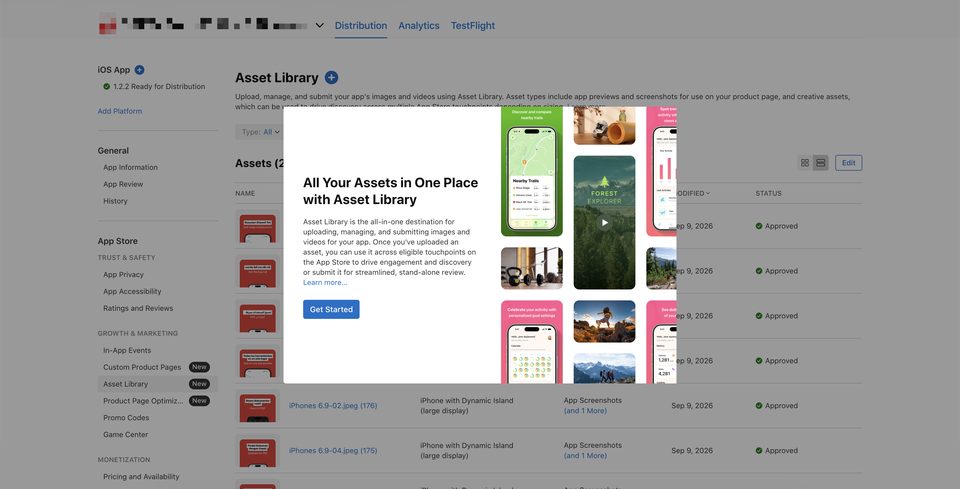
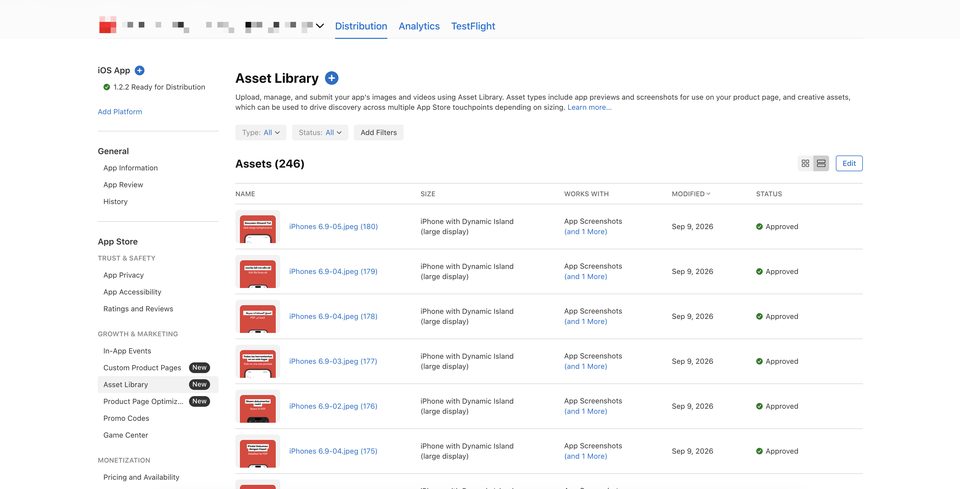
The main change in Asset Library is the ability to submit creative assets as a standalone submission.
For this type of review:
- a new app version is not required;
- the asset does not need to be assigned to a specific placement in advance;
- Apple reviews the material against the latest version of the app.
If the current version of the app is already live, an Approved creative asset can replace the current one without a new build.
This is especially useful for seasonal campaigns.
For example, a Black Friday Header can be submitted for review in October, receive Approved status, be activated on the day the campaign starts, and then removed afterward — without an app release between those steps.
Asset Library also shows additional information for each material:
- Works With — where the asset can be used;
- Recent Usage — where it was used recently.
Assets can be archived. Only assets with the Prepared for Submission status can be deleted.
There is one more limitation: a video’s poster frame cannot be changed after the asset has been Approved.
Working with Asset Library requires the appropriate permissions. Access is available to the following roles:
- Account Holder;
- Admin;
- App Manager;
- Marketing.
For automation, Apple also provides the App Asset Library API through the App Store Connect API.
How Asset Library Connects to Custom Product Pages
Approved assets can be selected from Asset Library when working with Custom Product Pages.
Each Custom Product Page still keeps its own set of:
- screenshots;
- app previews;
- promotional text;
- keywords;
- URL.
For teams working with Apple Ads, this can be connected to the familiar chain:
keyword → custom product page → paywall.
Now the top of a Custom Product Page can also use a selected visual hook from Asset Library.
Creative Assets Can Now Be Tested Through PPO
The new placements have also appeared in Product Page Optimization.
A treatment now has its own Header and Search Results tab, so these assets can be tested against the control.
The first experiment should be kept as simple as possible: change only the Search Results asset, while leaving the Header, screenshots, and other elements the same as in the control.
If both the Header and Search Results asset are changed at the same time, it becomes difficult to understand which specific change affected the result.
The Header can then be tested separately.
As of 2026, Apple allows up to three treatments in a single PPO test. A larger number of treatments may increase the time needed to reach a result.
A metadata treatment must first receive approval, but a new app version is not required.
There is another nuance: creative assets are shown only on newer OS versions. A PPO test using these materials therefore represents only the part of the app’s audience running supported iOS and iPadOS versions, not the entire user base.
At the time of publication, there are still no established performance benchmarks for the new placements. Early results should therefore be treated as a hypothesis rather than as a ready-made benchmark for other apps.
What About Apple Ads?
The new creative assets are already live in App Store Connect, but Apple Ads custom creative is not part of this release.
At the time the article was published, Apple Ads was still describing the feature as coming this fall.
The expected process looks like this:
approval in App Store Connect → use the asset in Apple Ads → separate review in Apple Ads.
That means teams should plan for two review stages.
No specific timing has yet been published for the second Apple Ads review.
You should also not expect the new assets to directly affect keyword positions. Apple Ads installs do not directly move organic rankings, and the new creative assets themselves do not change keyword rankings.
iPhone Duo: Another Change Teams Should Not Miss
On the same day, Apple opened asset uploads for iPhone Duo.
The device is expected to reach customers on October 23, 2026, and the current version of Xcode already supports optimization for it.
iPhone Duo optimized apps can already be submitted.
The key deadline for teams is April 2027.
From that point onward, every app or game submitted for review will need to include screenshots for iPhone Duo.
Apple has already added iPhone Duo templates for different orientations, including Header and Search Results assets. Preview in App Store Connect also lets teams view the page on this device.
What Teams Should Do Now
A short practical plan looks like this:
- Open Asset Library and check whether your role has the required access.
- Download Apple’s latest templates and design guidance.
- Prepare the Search Results asset first, then the Product Page Header.
- Decide whether to use a universal asset or separate variants. A universal asset requires the 16:9 format.
- Check the materials in Preview in Dark Mode, across different devices and orientations.
- Prepare a PPO test that changes only the Search Results asset.
- Plan localized creative assets for key markets.
- Submit seasonal materials in advance as standalone submissions.
- Add iPhone Duo screenshots to the Q1 2027 design plan.
Conclusion
App Store Asset Library changes not only where creative assets are stored, but also how teams work with them.
Product Page Header and Search Results are now separate placements. Approved assets can be stored in a shared library, submitted for review in advance without a new app version, connected to Custom Product Pages, and tested through Product Page Optimization.
Standard screenshots and app previews remain in place, while the new creative assets are currently visible only to users on iOS 27 and iPadOS 27 or later.
Apple Ads custom creative has not launched yet: at the time of publication, it remains marked as coming this fall and will eventually require a separate Apple Ads review after approval in App Store Connect.
Teams should also plan for iPhone Duo. Uploads are already open, and from April 2027, screenshots for the device will become mandatory when apps and games are submitted for review.
The practical approach is straightforward: first organize Asset Library, prepare Search Results and Header assets, check localizations and Preview, and then test the new placements one at a time. That makes it possible to understand not only how the new assets look, but which one actually affects the result.
Ready accounts with a 7-day guarantee. 10+ GEO options. Pay only after verification.
Order on Telegram