
An iOS app passes every office test. Login works, images load, and purchases complete. Then a tester disables Wi-Fi and the app becomes slow, shows an empty screen, or reports that there is no internet connection.
This is not an unusual edge case. Wi-Fi and cellular data can take different paths to the same backend. They may use different DNS resolvers, address families, content-delivery nodes, filtering policies, and latency profiles. A request that succeeds through an office network can expose a hidden assumption as soon as it travels through a carrier network.
The right response is not to add a generic retry loop or blame the mobile operator. The team needs to identify which layer fails, reproduce that layer under controlled conditions, and confirm the fix on a real device.
Partner material: This technical guide was prepared with GateProxies. The service is mentioned where controlled regional routes can support web, API, and CDN testing. A proxy does not reproduce the radio network or every characteristic of a mobile carrier.
Why Wi-Fi and cellular results can differ
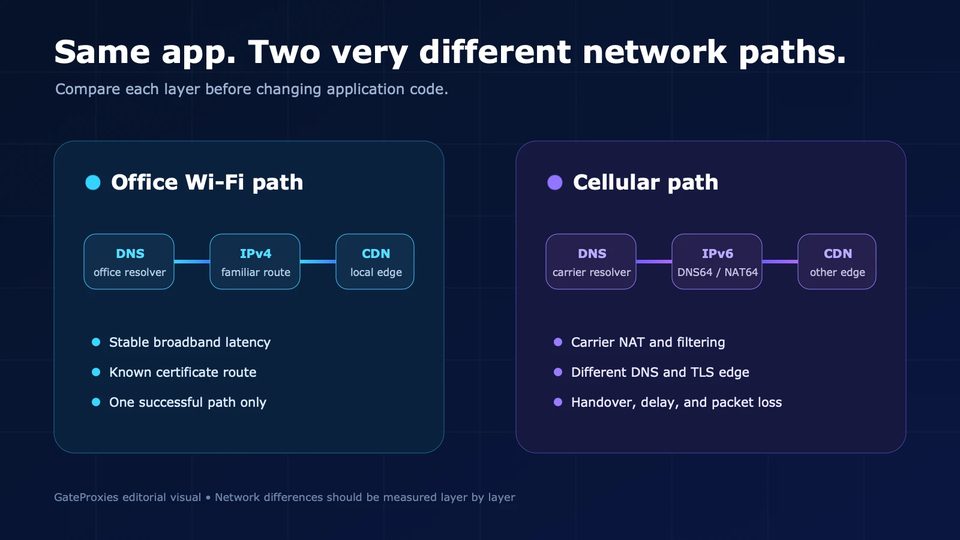
From the app's point of view, both connections provide internet access. Underneath, they may be very different.
An office Wi-Fi network might resolve the API domain to IPv4 and reach a nearby CDN node through stable broadband. A cellular carrier might prefer IPv6, use DNS64/NAT64 translation, choose another CDN edge, or pass through carrier-grade NAT. The carrier route may also have higher latency and more transitions as the user moves between towers.
That is why “it works on Wi-Fi” proves only that one path works. It does not prove that the client and backend are portable across real user networks.
Define the exact failure first
“Mobile data does not work” is too broad to debug. Record the smallest observable failure before changing code:
- iPhone model and iOS version;
- mobile operator and country;
- whether 4G, LTE, or 5G is shown;
- the exact screen and action that fails;
- time of failure, including time zone;
- whether Safari can open a normal HTTPS website;
- whether the app fails immediately or after a delay;
- whether every request fails or only one host or feature;
- whether returning to Wi-Fi fixes the same action.
An instant offline result may come from app configuration or premature reachability logic. A failure after 30 seconds suggests a timeout or unreachable route. Missing images with working login may point to a CDN or storage domain. A problem limited to one country may indicate regional DNS, routing, or backend policy.
Check device and app configuration
Open Settings > Cellular and confirm that cellular data is enabled for the app. Temporarily disable VPN, DNS-filtering, security, or traffic-inspection apps because they can change the route independently.
Test with a second carrier if possible. If the failure follows the carrier, investigate the route. If it follows the device, inspect its configuration and installed build.
For apps using URLSession, review the configuration that creates the session. A configuration can restrict cellular access even when the device has a valid connection.
Also review how the interface decides that the device is offline. Apple has deprecated using reachability as a preflight gate because conditions can change between the check and the request. A stronger approach is to start the request and handle its real result. When appropriate, waitsForConnectivity lets a session wait for a suitable path instead of failing immediately.
NWPathMonitor can help the interface react to path changes. It should not become a conflicting source of truth that prevents valid requests from starting.
Test transitions as well as settled states. Start a request on Wi-Fi, disable Wi-Fi, and observe the move to cellular. Repeat in the opposite direction. Background uploads, media downloads, and long-lived connections deserve their own transition tests.
Test IPv6 and DNS64/NAT64
IPv6 is one of the most important differences between office and carrier networks. Apple requires App Store submissions to support IPv6-only networks. Apps that use high-level Apple networking APIs and connect to hostnames usually receive this support automatically, but hardcoded IPv4 addresses and address-specific socket code can still fail.
Look for these warning signs:
- an API base URL written as an IPv4 literal;
- code that assumes every address contains four decimal groups;
- allowlists that accept only IPv4 source addresses;
- an SDK that places an IP literal inside a URL or protocol message;
- a server with an AAAA record that does not serve IPv6 correctly;
- manual construction of IPv6 addresses from IPv4 values.
Apple recommends testing on an IPv6-only DNS64/NAT64 network. A local Wi-Fi test that silently uses IPv4 may never exercise the path seen by a cellular user. Use hostnames, let the system resolver choose the address, and verify both client and server behavior.
Compare the A and AAAA records for every hostname used by the failing feature, including API, authentication, media, configuration, and payment domains. Check for stale records, failed migrations, and CNAME chains that behave differently across resolvers.
If the app works when connected directly to one IP but fails through its hostname, do not hardcode the IP. That result is evidence of a DNS or virtual-host problem, not a safe solution.
Inspect TLS and App Transport Security
App Transport Security, or ATS, protects connections made through Apple's URL Loading System. URLSession expects HTTPS, valid certificates, and modern TLS. A backend that looks fine in one browser can still fail if a regional edge serves an incomplete certificate chain, expired certificate, mismatched hostname, or outdated TLS configuration.
Review logs for secure connection failures, trust failures, hostname mismatch, and connection resets. Test every hostname used by the screen. Teams often validate the primary API and overlook an image host, redirect destination, analytics service, or remote configuration endpoint.
Do not solve the problem with a global NSAllowsArbitraryLoads exception. It weakens transport security for the whole app and hides the actual defect. If a temporary exception is unavoidable, keep it specific and document it.
Separate latency from connectivity
Cellular networks are not always slower than Wi-Fi, but they can be less predictable. Radio conditions, congestion, and routing can increase delay or packet loss. A timeout chosen on fast office Wi-Fi may be too aggressive for a real mobile path.
Instrument requests so the team can answer:
- Did DNS resolution complete?
- Was a connection established?
- Did TLS negotiation complete?
- When did the first response byte arrive?
- How long did the transfer take?
- Did the request retry, and why?
Never log passwords, authorization headers, cookies, access tokens, or sensitive request bodies. Diagnostics should explain the network phase without creating a security incident.
Retry only operations that are safe to repeat. A duplicated profile request is inconvenient; a duplicated purchase can be damaging. Mutating endpoints should use idempotency keys where appropriate.
Check regional CDN and API behavior
If users in one country or on one carrier are affected, the application code may be healthy while the delivery path is not.
Possible causes include a failing CDN edge, a firewall rule blocking an address range, inconsistent API gateway configuration, geo-routing to an unhealthy region, or rate limits applied to carrier-grade NAT addresses shared by many users.
Controlled regional testing helps here. A team can send the same web or API request through exits in different countries and compare status codes, latency, headers, and response bodies. GateProxies provides residential, mobile, and ISP options that can support route comparison. At the time of writing, residential traffic starts from $1.31 per GB, mobile traffic from $3 per GB, and ISP addresses from $4.50 per IP.
Use the type that matches the question. Residential routes can help check location-dependent web and API behavior. A stable ISP route can support repeated tests from one address. Mobile exits provide another external carrier-origin perspective.
A proxy still does not reproduce the iPhone's radio state, local carrier DNS, or a real Wi-Fi-to-cellular handover. Use it to isolate regional routing questions, then confirm the fix on a physical device with cellular service.
Practical diagnosis order
Change one variable at a time. Keep the same app build, account, action, and test data across routes, and record request identifiers so backend engineers can find the matching server logs.
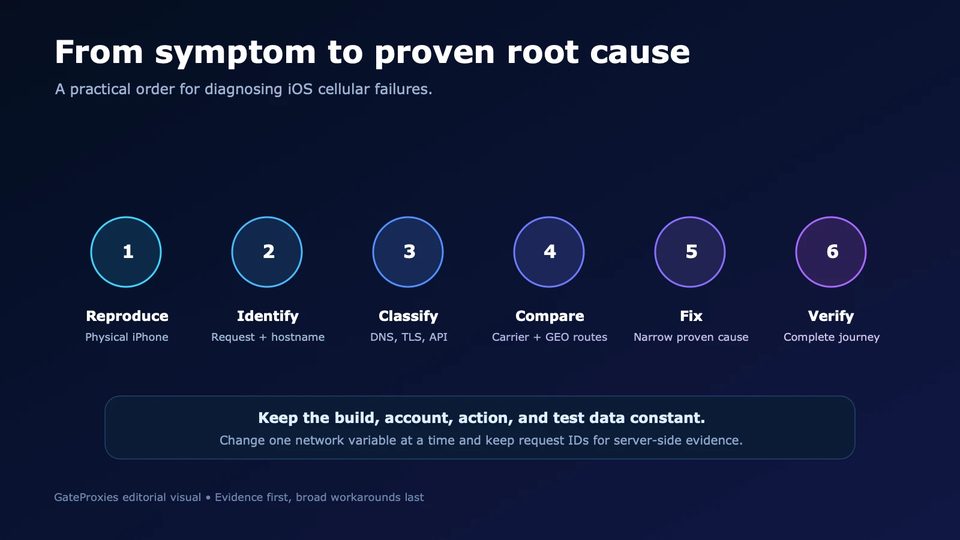
- Reproduce on a physical iPhone. Use the same release or TestFlight build and disable Wi-Fi.
- Confirm permissions and profiles. Check cellular access, VPN, filtering, Low Data Mode, and managed-device restrictions.
- Identify the failing request. Determine whether the failure affects authentication, API, media, payment, or a third-party SDK.
- Classify the phase. Separate DNS, connection, TLS, server response, and client parsing.
- Test IPv6-only behavior. Use Apple's DNS64/NAT64 setup and remove IPv4 assumptions.
- Compare external routes. Check affected and unaffected regions when location appears relevant.
- Inspect server evidence. If no request arrives, investigate DNS, routing, TLS, or edge filtering. If it arrives, inspect status and latency.
- Fix the narrowest proven cause. Avoid broad security exceptions and indiscriminate retries.
- Repeat the complete journey. Test login, media, purchases, background recovery, and every separate production domain.
Final takeaway
When an iOS app works on Wi-Fi but fails on mobile data, the cause is usually in one of a few layers: permissions, client configuration, connectivity transitions, IPv6 and DNS, TLS, timeout assumptions, CDN routing, or regional policy.
The fastest path to a reliable fix is disciplined comparison. Reproduce the failure on a real device, identify the exact request and phase, test IPv6 explicitly, compare regional routes when location is relevant, and confirm the solution on cellular service.
GateProxies can simplify external route and GEO comparisons when a team needs to inspect web, API, or CDN behavior outside its office network. It is one part of the testing toolkit, not a replacement for device-level testing.
An app is ready only when the complete user journey works beyond the network on which it was built.
Editorial source notes
- Apple Developer: Supporting IPv6-only Networks
- Apple Developer: Supporting IPv6 DNS64/NAT64 Networks
- Apple Developer: Preventing Insecure Network Connections
- Apple Developer:
waitsForConnectivity - Apple Developer:
NWPathMonitor - GateProxies: Residential, mobile, and ISP proxy infrastructure
Ready accounts with a 7-day guarantee. 10+ GEO options. Pay only after verification.
Order on Telegram